Tabs
- Opening clicking a file in the tree opens it as a full tab immediately, there’s no italic “preview” tab that gets replaced by the next click, like VS Code’s single-click preview mode. If a file’s already open, clicking it again just focuses the existing tab.
- Unsaved indicator a
●dot replaces the close button on any dirty tab. - Pinning right-click a tab → Pin Tab. Pinned tabs move to the front of the strip and survive “Close All Tabs.”
- Reordering drag a tab within its group to reorder it.
- Moving across groups drag a tab onto another group’s tab strip, or use the tab context menu’s “Move to Other Group” (or “Split to New Group” if there’s only one group).
- Context menu right-click any tab for Pin/Unpin, Move to Other Group, Copy Path, Close Tab.
- Close All Tabs (
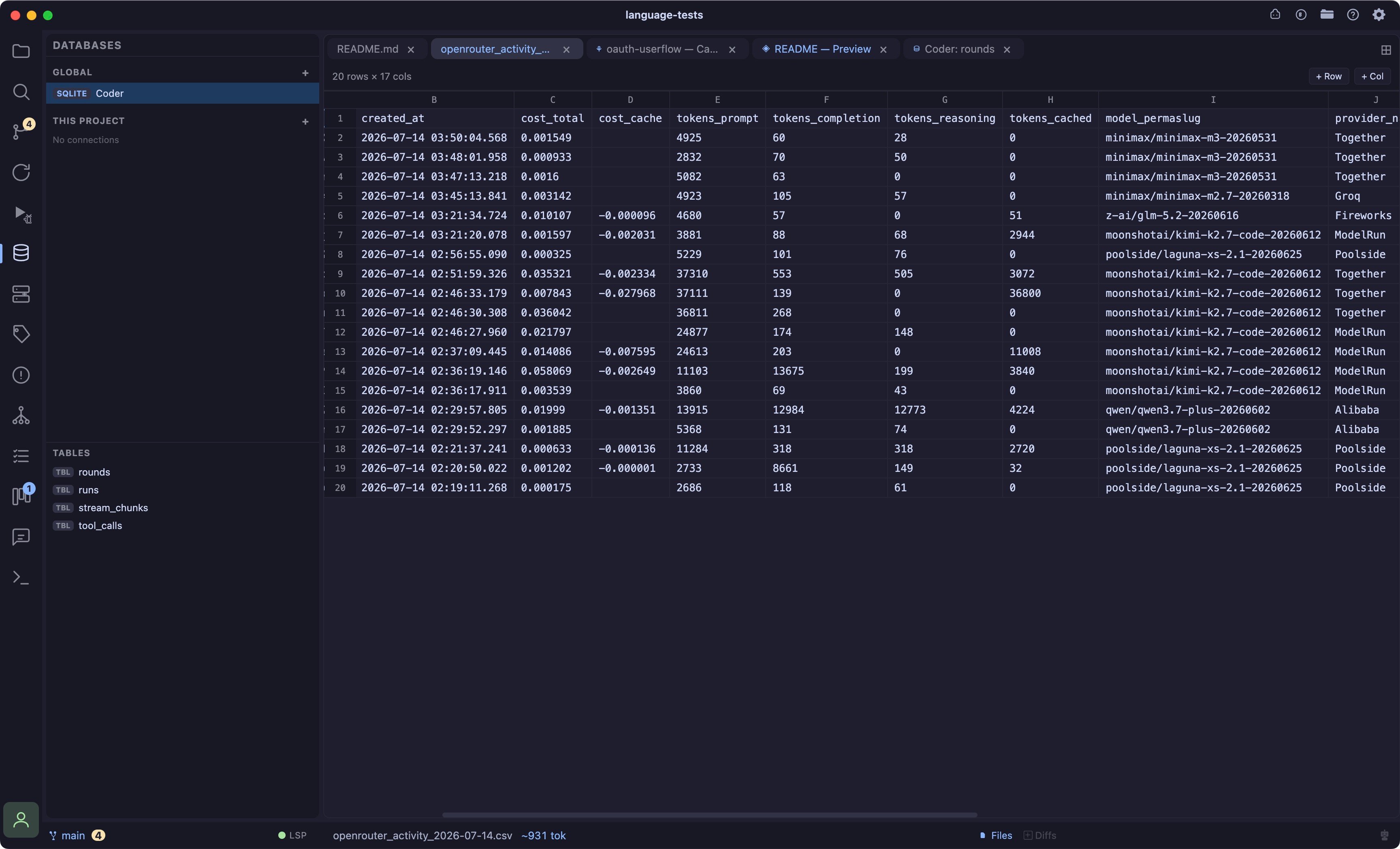
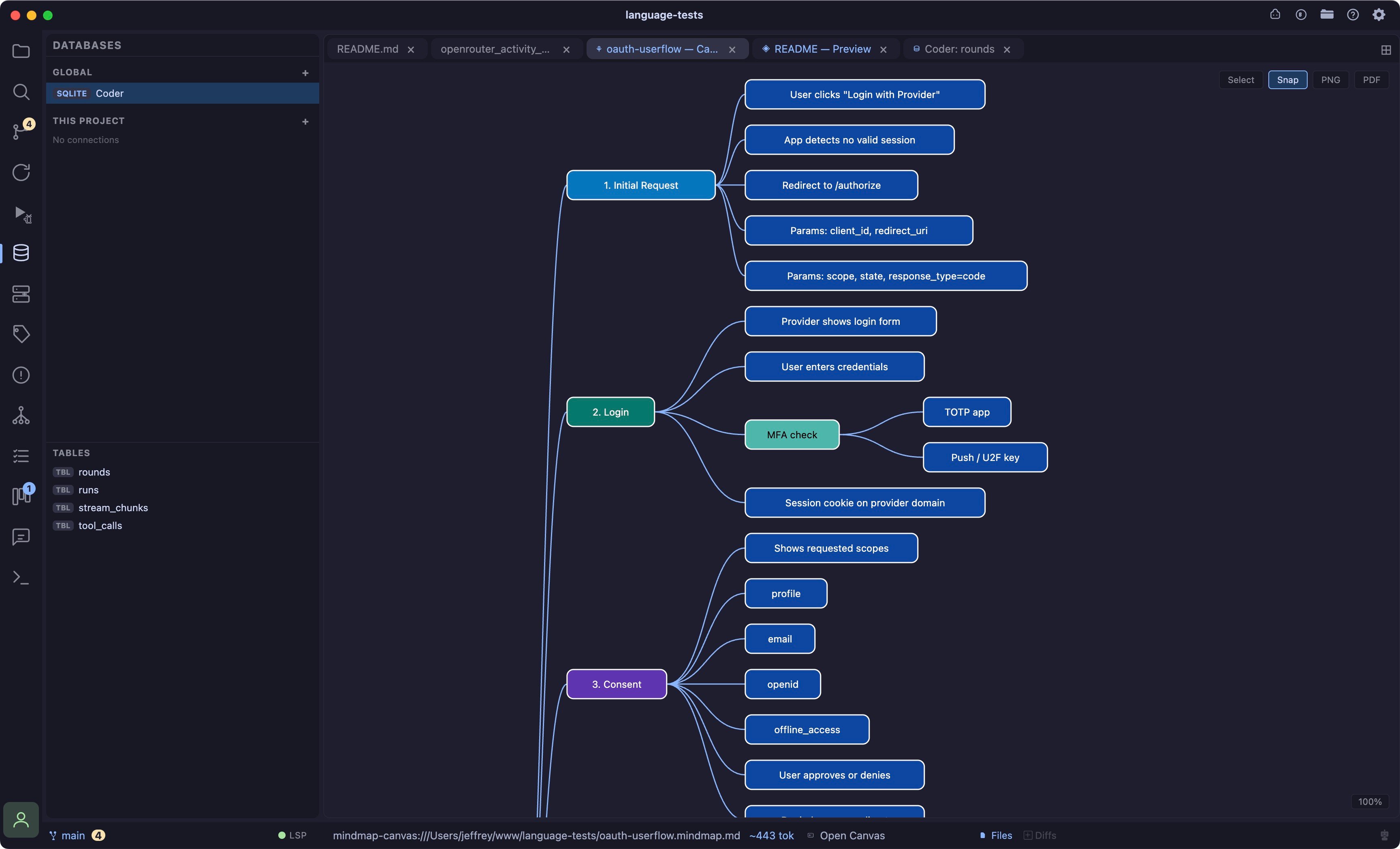
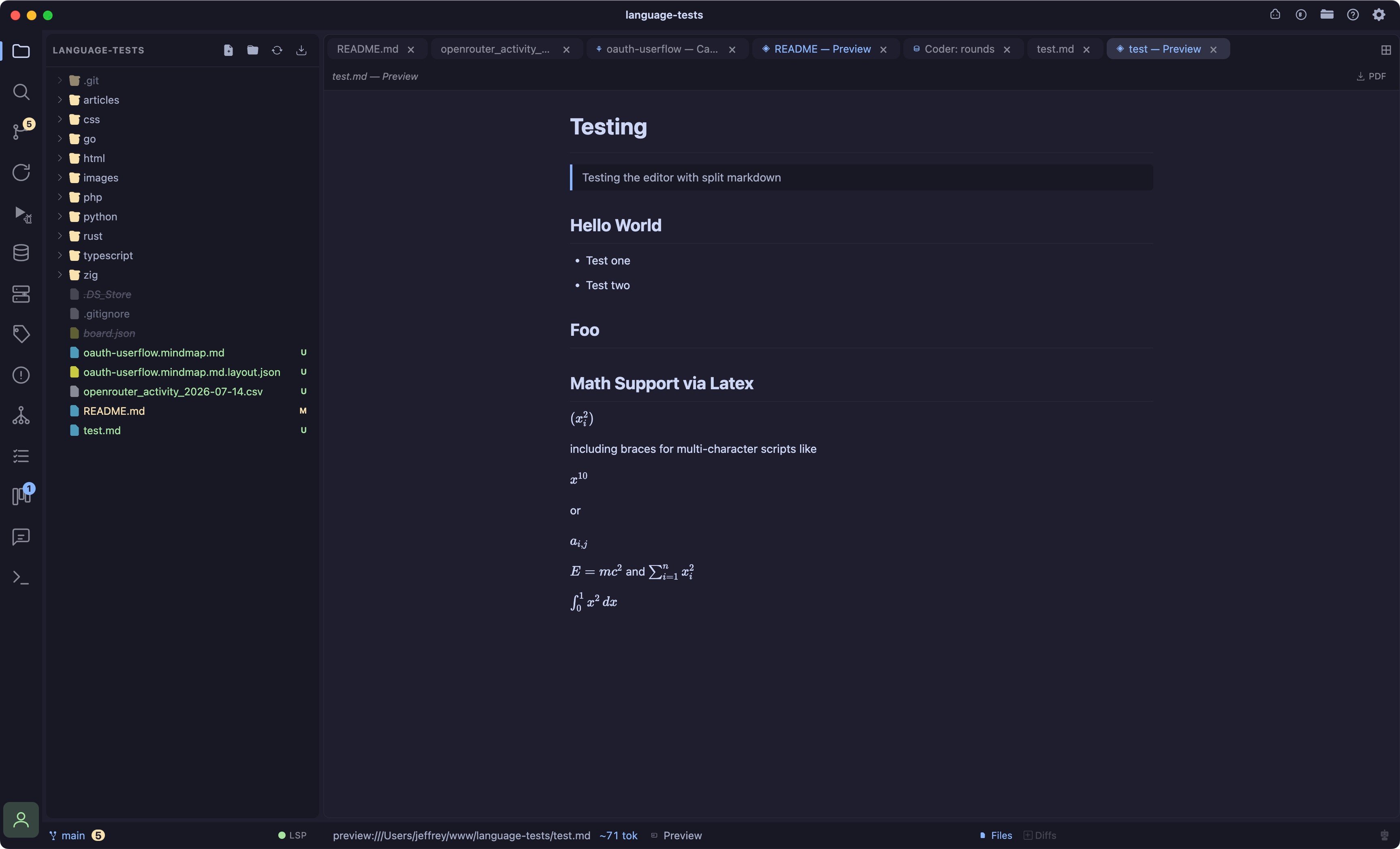
Cmd+Shift+W) closes everything except pinned tabs and terminals; reopens the Welcome tab if nothing’s left. - Many tab kinds share the strip, regular files, Markdown preview, diffs, terminals, the debug console, browser preview, CSV/TSV grids, mindmap source/canvas, images, DB tables, and remote/SFTP files each get their own icon and, where relevant, distinct styling.
- Remote files ask before closing dirty, closing a dirty SFTP tab prompts for confirmation, since a lost edit against a live server is riskier than a lost local edit. Local files close silently.
Split editor groups (grid layout)
Coder’s editor area is a true grid, up to 5 panes total, split along any of three axes:- Columns side by side, left to right.
Cmd+\(the⊞button) adds a new full-height column to the right of the active one. - Stacked rows within a column, top to bottom, e.g. a tall Claude Code terminal above two shorter command terminals.
Cmd+Shift+\(the stacked-rectangle button) splits the active pane into a new row below it, confined to that column, up to 3 rows deep. - Sub-panes side by side within a single row, confined to that row’s height. The row-split button (the short side-by-side rectangle icon) splits the active pane into a new sub-pane beside it, up to 3 per row, without touching the rest of the column’s stack.
- Shared buffers the same file opened in two panes shares one underlying model, edit it in one pane and the other updates live, rather than holding two independent copies.
- Resizing drag any divider, between columns, between stacked rows, or between sub-panes in a row. Widths/heights are clamped to a sane minimum and persisted per-pane.
- Closing a pane (
×on the tab strip) is blocked on the last remaining pane; any terminal that only lived in that pane has its process killed rather than orphaned. Closing one pane of a stack or row moves focus to a sibling in the same row, then the same column, before falling back further away. - Focus click anywhere in a pane to make it active; inactive panes mute their tab strip so it’s obvious which one has focus.
Cmd+Shift+Arrowmoves focus between panes in the direction pressed, left/right first steps through sub-panes within the current row before crossing into the next column, up/down steps through a column’s stacked rows, and landing in a pane immediately focuses its content (the Monaco cursor for a file, or the terminal’s input for a shell), so you can keep typing without an extra click. - Terminals, diffs, Markdown preview, the debug console, browser preview, and the mindmap canvas can each only live in one pane at a time (they hold a single PTY or webview); splitting moves these instead of cloning them, leaving the new pane with the welcome screen.
- Persisted the full grid shape, columns, stacked rows, and sub-panes, survives a reload or restart, including which pane a still-alive terminal was in across a same-session reload. Terminal processes don’t survive a full quit, since they’re not saved to disk, but the pane they lived in comes back empty and ready for a new one.
File tree
- Create/rename/delete via the tree header (New File, New Folder) or right-click context menu (also: Copy, Copy Path, Paste, Delete).
- Drag and drop drag any file or folder onto a directory to move it there, or onto empty space below the tree to move it to the project root.
- Compare any two files right-click → “Select for Compare,” then right-click a second file → “Compare with…”, opens an arbitrary two-file diff tab, independent of git.
- Git decorations modified/staged/untracked/deleted badges and colored filenames; directories containing changes show a dot even while collapsed.
- Lazy loading large directories (
node_modules,.git) load their children on first expand rather than up front.
Language support
Built-in Monarch grammars cover TypeScript/JavaScript, HTML, CSS/SCSS/Less, JSON, Markdown, YAML, Python, Rust, Go, Ruby, PHP, C/C++, C#, Java, SQL, and XML. A few languages Monaco doesn’t ship at all are hand-written: Zig, TOML, JSONL, and Coder’s own.mindmap.md format.
PHP gets extra treatment: Monaco’s stock PHP grammar tags every bare word, properties, methods, calls, as one generic token, so function calls and variables end up the same color. Coder patches the grammar to tag name( calls separately, and every built-in editor theme carries a matching set of *.php color rules.
Semantic highlighting (TypeScript / JavaScript)
Monarch grammars can’t tell a function call apart from a variable or a parameter, they’re all just “identifier.” For.ts/.tsx/.js/.jsx, Coder runs a custom TypeScript language-service worker (the same source VS Code uses for semantic tokens) so classes, parameters, properties, and locals each get their own color, layered on top of the base syntax highlighting. If the worker fails for any reason, plain syntax highlighting still applies underneath, nothing breaks or goes blank.
PHP docblocks
Typing/** above a function and pressing Enter auto-continues the block with * on each line and closes it with */, same as VS Code’s JSDoc behavior. Typing /** also offers a snippet with @param/@return tab stops, it deliberately ranks below intelephense’s own signature-aware docblock completion when both are available, so you get real parameter names and types when the LSP can supply them.
Editing
- Bracket pair colorization and inline AI completions (ghost-text, “AI”) are on.
- Format on save optional, off by default, see Settings below. If it fails, the save still goes through.
- Format Document (
Cmd+L) reformats the current file; for HTML/PHP, embedded<style>/<script>blocks are extracted and formatted with their own language’s formatter, then spliced back in, since the outer language’s formatter alone would leave them untouched. - Go to definition (
Cmd/Ctrl+clickor F12) always jumps directly to a real editor tab, never Monaco’s inline “peek” popup, even across files. - View state scroll position and cursor location are remembered per file and restored when you come back to a tab.
- External changes if a file changes on disk while it’s open (another process, a git operation), the change is merged into the live buffer in place, undo history and cursor position survive, instead of a full reload.
- Copy to AI copying a selection also snapshots the file path, line range, and language for the AI chat panel to reference.
- No minimap, no word wrap, and no breadcrumbs/sticky-scroll, none of these are currently implemented or user-configurable.
Settings
Settings → General: editor color theme (see Themes), editor font size (8–32px). Settings → Editor: indent size (2/4 spaces), indent style (spaces/tabs), format on save.Shortcut Key Commands
All remappable in Settings → Keybindings. See Shortcuts & Workflows for the full list.
Our editor does more!
CSV & TSV Prarsing and Editing